
Control panel
The robot has a control panel in the rear-left corner of the robot.
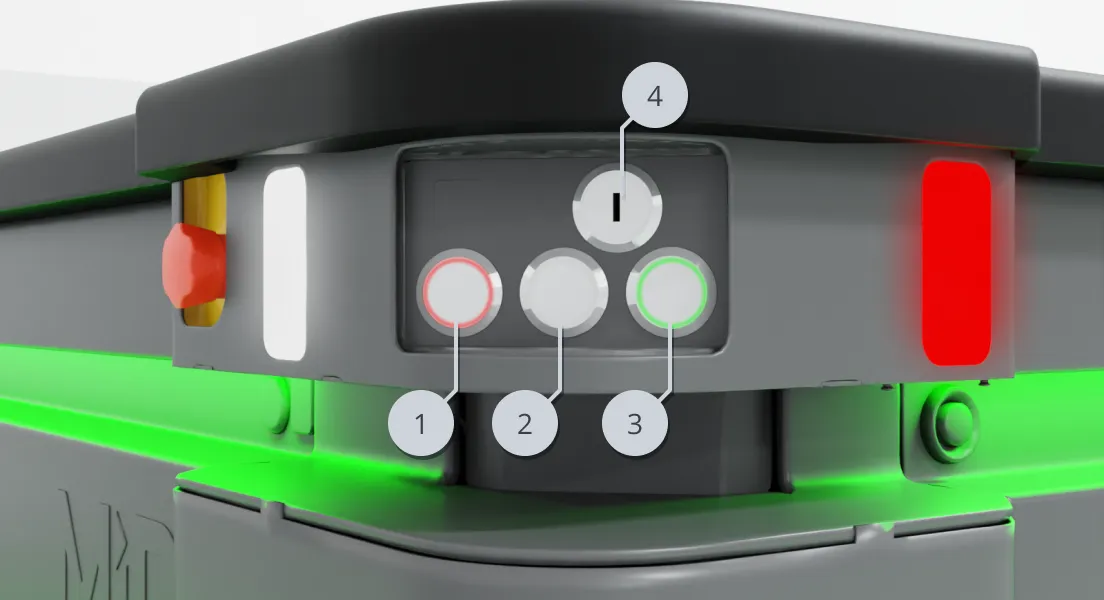
| Pos. | Description | Pos. | Description |
|---|---|---|---|
| 1 | Stop button | 2 | Restart button |
| 3 | Power button | 4 | Operating mode key |
Stop button
Pressing this button stops the robot. After pressing this button, you must press the Restart button to let the robot continue operating.
Color indication:
- Red: It is possible to engage the Manual stop.
Restart button
Pressing this button:
- Clears the Emergency or Protective stop state.
- Lets the robot continue operating after the Stop button was pressed or after the operating mode changes.
Color indication:
- Blinking blue: The robot is waiting for the robot to press the Restart button to clear the current stopped state.
Power button
Pressing this button for three seconds turns the robot on or shuts it off.
Color indication:
- Blinking green: The robot is starting up.
- Green: Normal operation.
- Blinking blue: The robot is checking that the battery level is high enough to start up.
- Blinking red: The battery level is too low to start without additional charging, or the robot is shutting down.
Operating mode key
The Operating mode key lets you switch between operating modes—see Operating the robot.
- Left position: Automatic mode
- Middle position: Locked mode
- Right position: Manual mode