
Electrical interfaces
The robot has seven electrical interfaces in the left and right top compartments:
- Left top compartment
- Power
- Ethernet
- GPIO
- Right top compartment
- Auxiliary safety functions
- Auxiliary emergency stop
- Antenna
For the location of the electrical interfaces, see Internal parts.
Power

CAUTION
Connecting an unsupported device to the Power interface can damage the robot or result in injury to personnel from electrocution or burns.
- Do not connect power and ground signals to the chassis.
- Do not stack the 24 V and 48 V power supplies.
- Do not connect 48 V power supplies to 24 V pins or vice versa.
- Do not connect a top module that can deliver an inverse current to the robot interfaces.
- Ensure connected devices do not have a capacitance of more than 2 000 µF combined from pins 1 and 3. If they do, integrate a softstarter that keeps the current under 2 A for the first 100 ms.
- Ensure connected devices do not draw more than 20 A combined from pins 1 and 3 while the robot is driving.
- Ensure connected devices do not draw more than 2 A combined from pins 1 and 3 while the robot is at standstill.
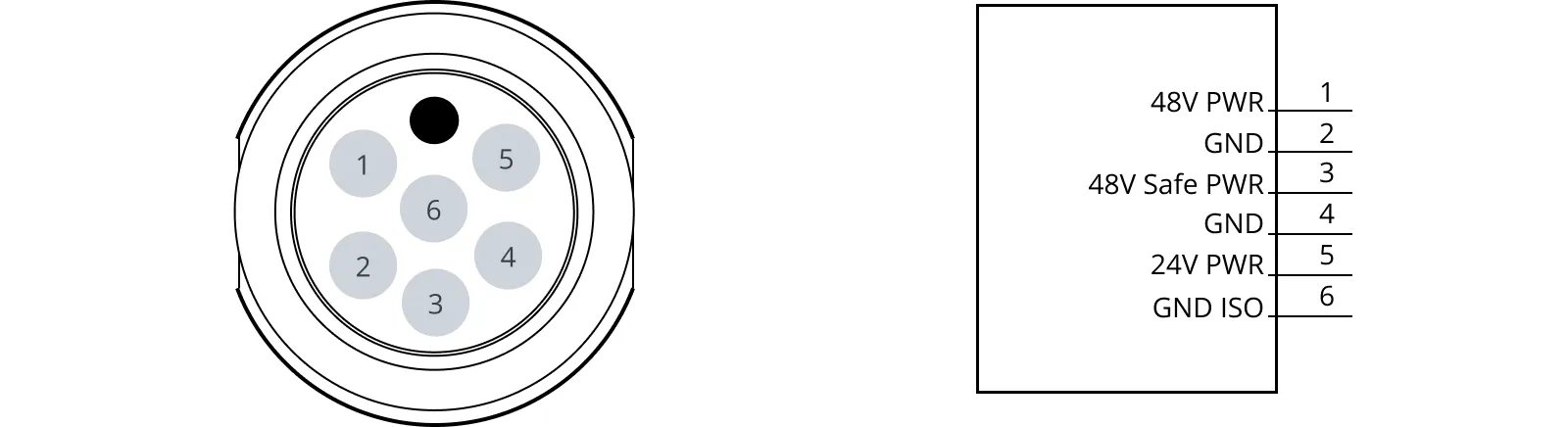
| Pin | Name | Limits | Function |
|---|---|---|---|
1 | 48V PWR | 20 A across pins 1 and 3 42–54 V, with reference to pins 2 and 4 | Active when robot is on. Turns off during Protective and Emergency stops by default—see Turn off TOP FUSE feature. Intended for high-power loads like motors and actuators. |
2 | GND | Power ground. | |
3 | 48V SafePWR | 20 A across pins 1 and 3 42–54 V, with reference to pins 2 and 4 | Active when robot is on. Turns off during Protective and Emergency stops through safety-rated STO contactor. Intended for high-power loads like motors and actuators. |
4 | GND | Power ground. | |
5 | 24V | 2 A 23–25 V, with reference to pin 6 | Always on when robot is on. Intended for low-power use, like powering an external PLC. |
6 | GND_ISO | Ground. | |
7 | Unassigned |
Turn off TOP FUSE feature
You can use the Turn off TOP FUSE feature to disable the TOP FUSE to the Power interface during a Protective or Emergency stop. This is the fuse that cuts power to the TOP 48V pin and the TOP-Safe 48V.
By default, the feature is enabled, meaning that:
Neither the TOP 48V pin nor the TOP-Safe 48V pin can draw power during an Emergency or Protective stop.
The power from both pins are softstarted by gradually raising the voltage from 0 to 48 V in 100 ms. During this period, the current should be less than 2 A.
If you disable the feature, the TOP FUSE does not turn off when the robot enters Protective or Emergency stop. This means that:
The TOP 48V pin can still draw power from the robot during an Emergency or Protective stop.
The TOP-Safe 48V pin cannot draw power until the robot exits the stopped state, but the inrush current is not reduced by the softstarter. If the inrush current is too high, the fuse will trip and start again with the inbuilt softstarter.
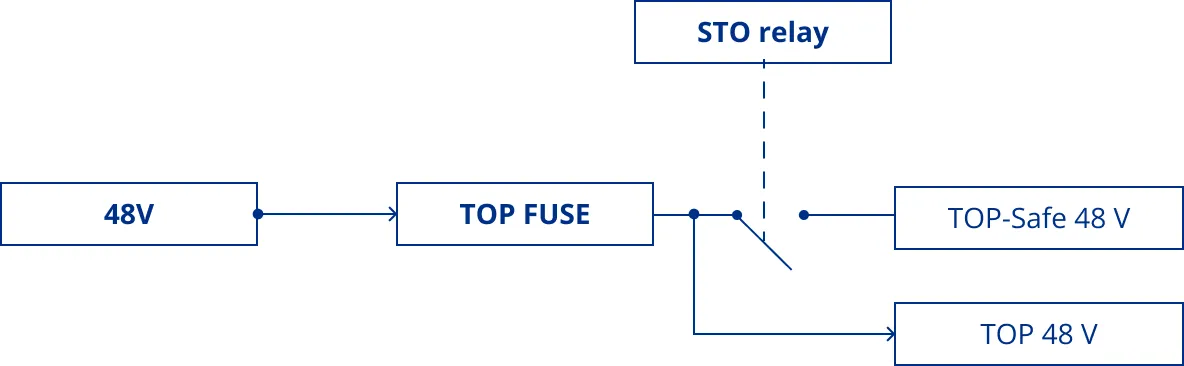
If you disable the feature and connect a load that has a capacity above 100 µF or draws large currents in the first 100 ms to the TOP-Safe 48 V pin, and you do not integrate your own softstarter to the device, the TOP FUSE will trip when the robot exits Emergency or Protective stop. The fuse will reconnect again shortly after using the inbuilt softstarter.
There is a risk that the fuse will break when it is tripped. For this reason, we recommend that you ensure your top module does not trip the fuse as described above, even though in most cases it will reconnect.
GPIO
The GPIO supports low current and power devices like relays, contactors, lamps, and separate PLC units.
The GPIO pins are intended for the following:
- Output pins can be activated or deactivated in missions, zones, or directly is the robot web-interface under Setup > I/O modules.
- The status of an Input pin can be used for conditional or wait actions in missions, and can be read directly in the robot web-interface under Setup > I/O modules.
- RTN pins are used as ground.
- 24V pins provide 24 V constantly.
If the GPIO pins are not working as expected, ensure that the Shelf and Pallet lift features are disabled under System > Settings > Features.
Output pins must be connected to RTN pins, and input pins must be connected to 24 V pins.
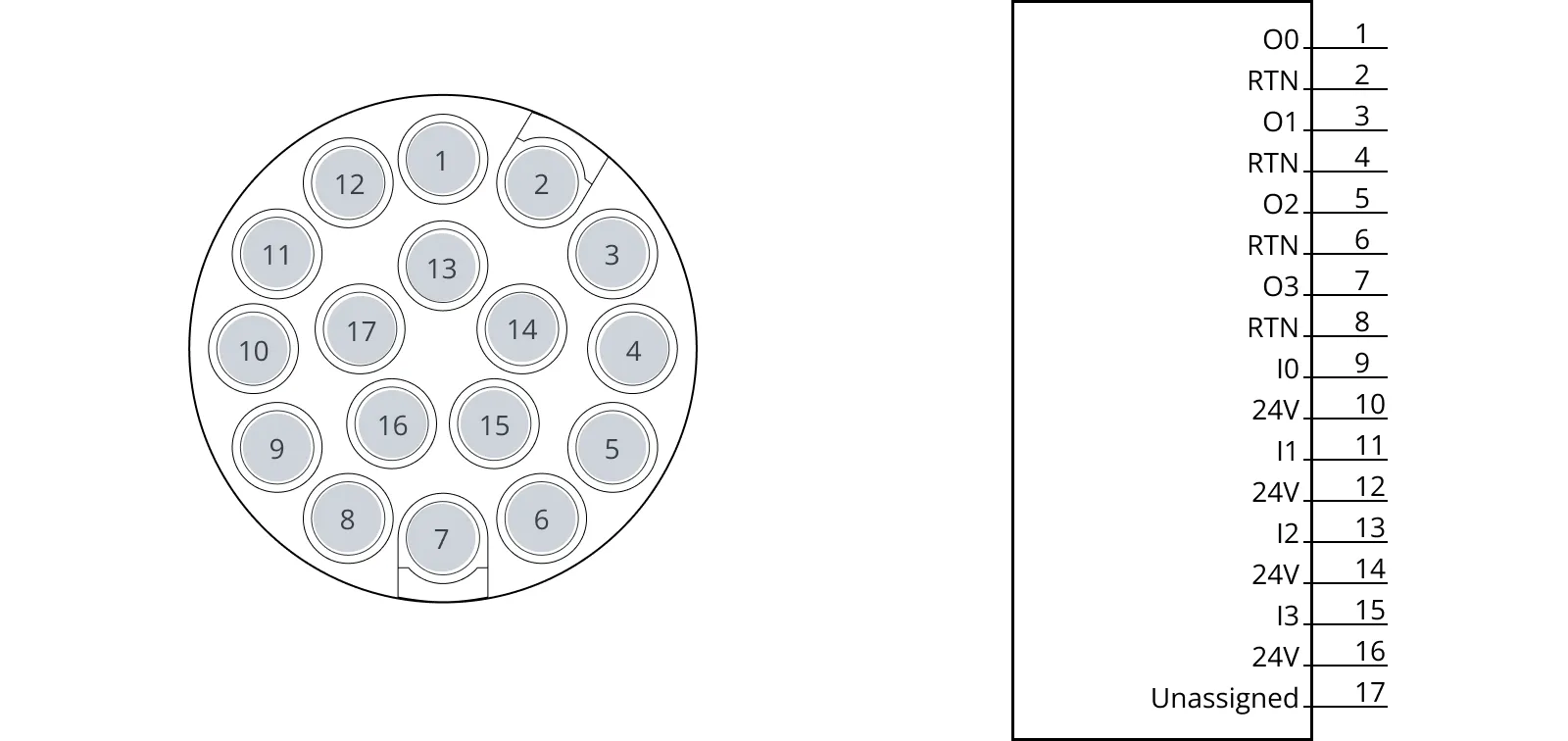
| Pin | Name | Limits | Function |
|---|---|---|---|
| 1 | O0 | 1 A at 24 V | Output 0 |
2 | RTN | Protected return | |
| 3 | O1 | 1 A at 24 V | Output 1 |
4 | RTN | Protected return | |
| 5 | O2 | 1 A at 24 V | Output 0 |
6 | RTN | Protected return | |
| 7 | O3 | 1 A at 24 V | Output 0 |
8 | RTN | Protected return | |
| 9 | I0 | 1 A at 24 V | PNP input 0 |
| 10 | 24V | 1 A at 24 V | Protected output |
| 11 | I1 | 1 A at 24 V | PNP input 1 |
| 12 | 24V | 1 A at 24 V | Protected output |
| 13 | I2 | 1 A at 24 V | PNP input 2 |
| 14 | 24V | 1 A at 24 V | Protected output |
| 15 | I3 | 1 A at 24 V | PNP input 3 |
| 16 | 24V | 1 A at 24 V | Protected output |
| 17 | Unassigned |
Ethernet
The communication interface is 10/100 Mbps Ethernet.
REST API is supported on all software versions. For more information about REST API on software 2.x and 3.x, see MiR API features and REST API files on MiR Support Portal. For more
Modbus is supported on software 2.x and 3.x. For more information on how to use Modbus, see the guide How to use Modbus with MiR robots. You can find this guide on MiR Support Portal.
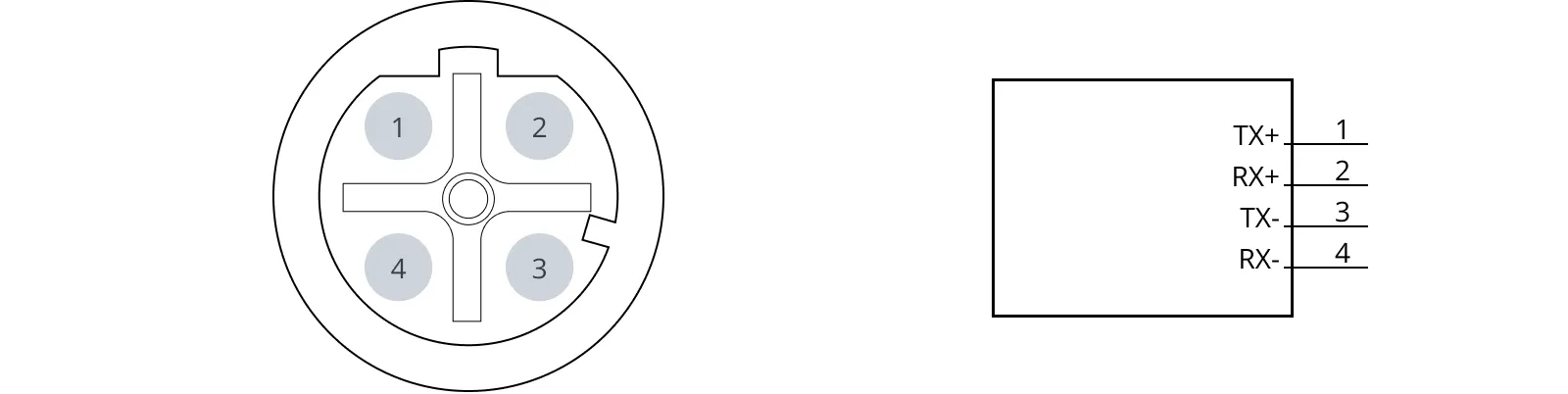
| Pin no. | Signal name | Pin no. | Signal name |
|---|---|---|---|
| 1 | TX+ | 2 | RX+ |
| 3 | TX- | 4 | RX- |
Auxiliary emergency stop
The Auxiliary emergency stop interface supports the Emergecny stop safety function—see Emergency stop.
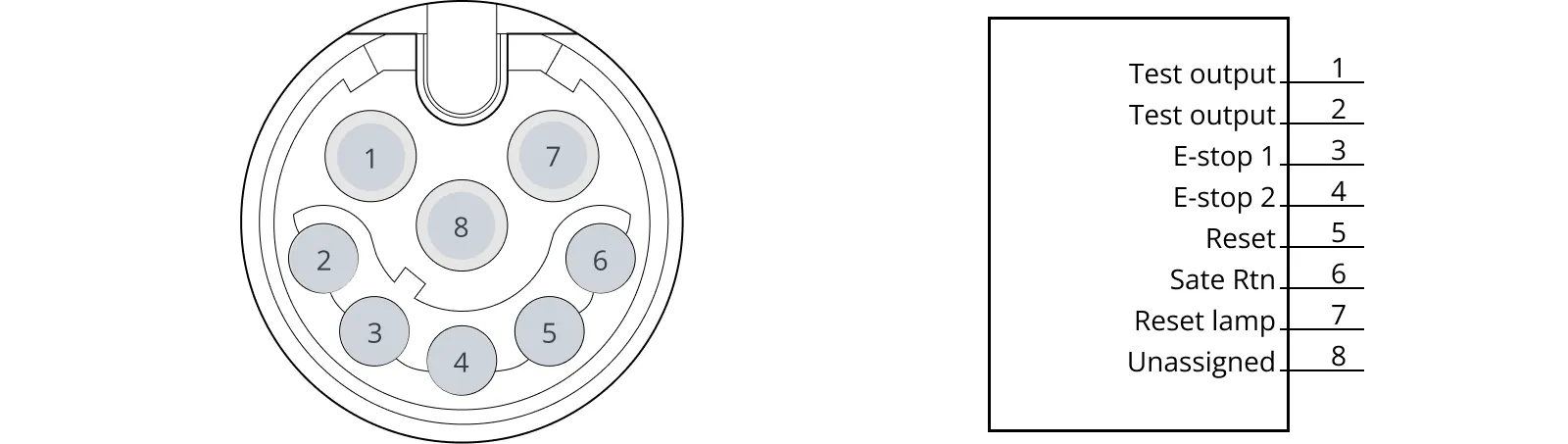
| Pin | Name | Type | Function |
|---|---|---|---|
| 1 | Test output | Output | 24 V output signal from the safety PLC for the Emergency stop circuit. Should connect to pin 3. |
| 2 | Test output | Output | 24 V output signal from the safety PLC for the Emergency stop circuit. Should connect to pin 4. |
| 3 | E-stop 1 | Input | Input signal to the safety PLC for the Emergency stop circuit. Must receive 24 V to prevent the robot from entering Emergency stop. Should connect to pin 1. |
| 4 | E-stop 2 | Input | Input signal to the safety PLC for the Emergency stop circuit. Must receive 24 V to prevent the robot from entering Emergency stop. Should connect to pin 2. |
| 5 | Reset | Input | When active, the robot resets. |
| 6 | Safe RTN | Ground | Safe return. |
| 7 | Reset lamp | Output | Active when robot needs to be reset. |
8 | Unassigned. |
Auxiliary safety functions
The Auxiliary safety functions interfaces support the safety functions described in Safety functions and interfaces.
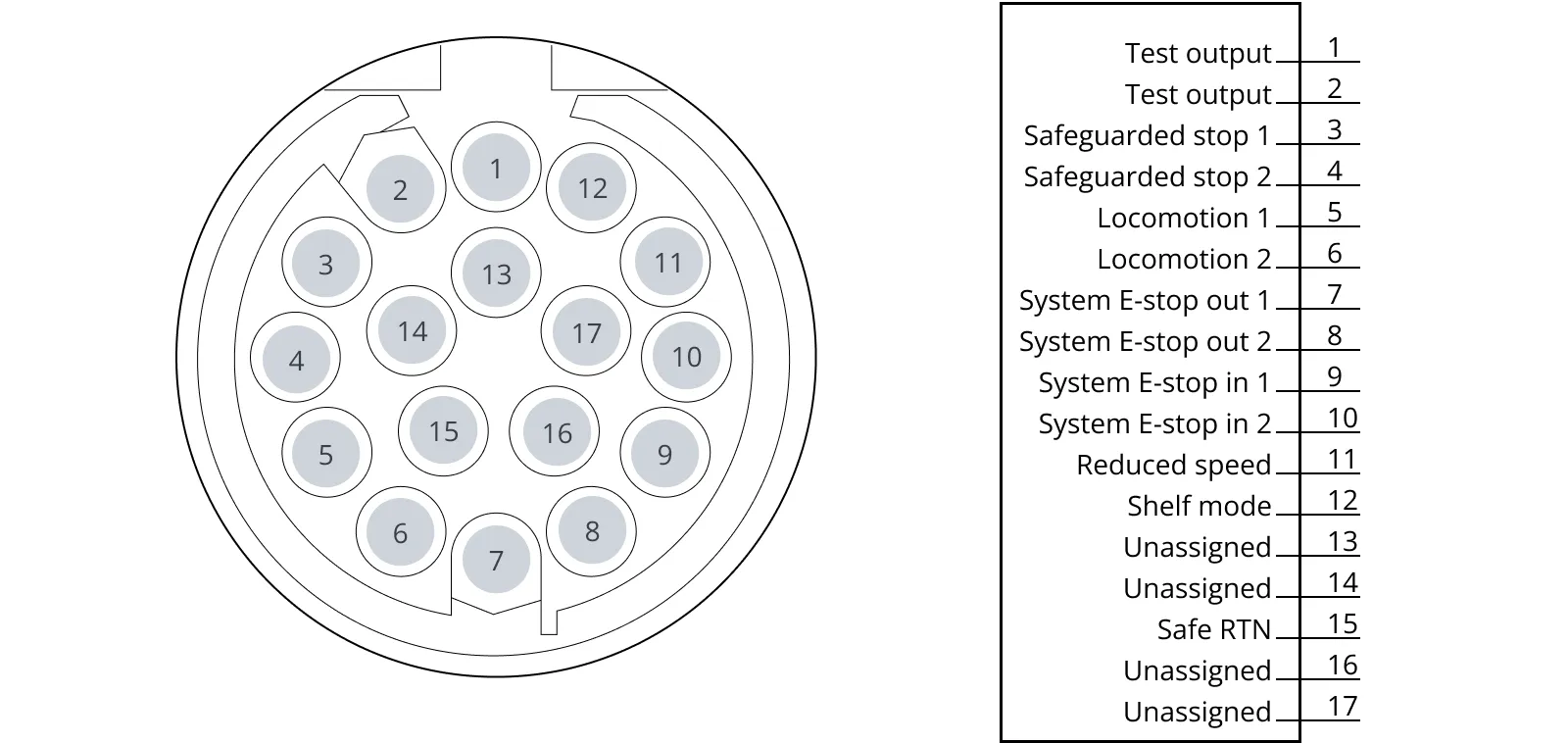
| Pin | Name | Type | Function |
|---|---|---|---|
| 1 | Test output | Output | 24 V output. |
| 2 | Test output | Output | 24 V output. |
| 3 | Safeguarded stop 1 | Input | When inactive, the robot enters Protective stop. If pins 3 and 4 are unequally set for more than three seconds, the robot must be restarted. |
| 4 | Safeguarded stop 2 | Input | When inactive, the robot enters Protective stop. If pins 3 and 4 are unequally set for more than three seconds, the robot must be restarted. |
| 5 | Locomotion 1 | Output | Active when the robot is standing still. |
| 6 | Locomotion 2 | Output | Active when the robot is standing still. |
| 7 | System E-stop out 1 | Output | Inactive when an Emergency stop button is pressed. Active if all Emergency stop buttons are released, even if you have not pressed the Restart button. |
| 8 | System E-stop out 2 | Output | Inactive when an Emergency stop button is pressed. Active if all Emergency stop buttons are released, even if you have not pressed the Restart button. |
| 9 | System E-stop in 1 | Input | When inactive, the robot enters Emergency stop. |
| 10 | System E-stop in 2 | Input | When inactive, the robot enters Emergency stop. |
| 11 | Reduced speed | Input | When inactive, the robot cannot drive faster than 0.3 m/s. |
| 12 | Shelf mode | Input | When active, the robot checks for shelf legs if pin 11 is also active. Is only intended to be used with MiR Shelf Lift. |
13 | Unassigned. | ||
14 | Unassigned. | ||
| 15 | Safe RTN | Ground | Safe return. |
16 | Unassigned. | ||
17 | Unassigned. |
Wi‑Fi antenna
The Wi‑Fi antenna interface is an RP-SMA connector that goes to the front compartment. It is not connected to the robot computer by default.
Adding antennas is considered a modification to the robot, and it is the modifier's responsibility to ensure applicable compliance.
By default, the Wi‑Fi antenna interface connector is not enabled. It is connected to an antenna cable inside the robot that leads to the front compartment, but the cable is not connected to the robot computer.
If you choose to use the Wi‑Fi antenna interface, you must disconnect one of the two antennas already installed in the robot, and connect the antenna cable from the Wi‑Fi interface to the robot computer instead.
To swap which antenna is connected to the robot computer, follow these steps:
Open the electronics drawer—see Accessing the internal parts.
Locate the robot computer—see Electronics drawer.
Locate the loose RP-SMA antenna cable that is not yet connected. The cable will be nearby the robot computer.
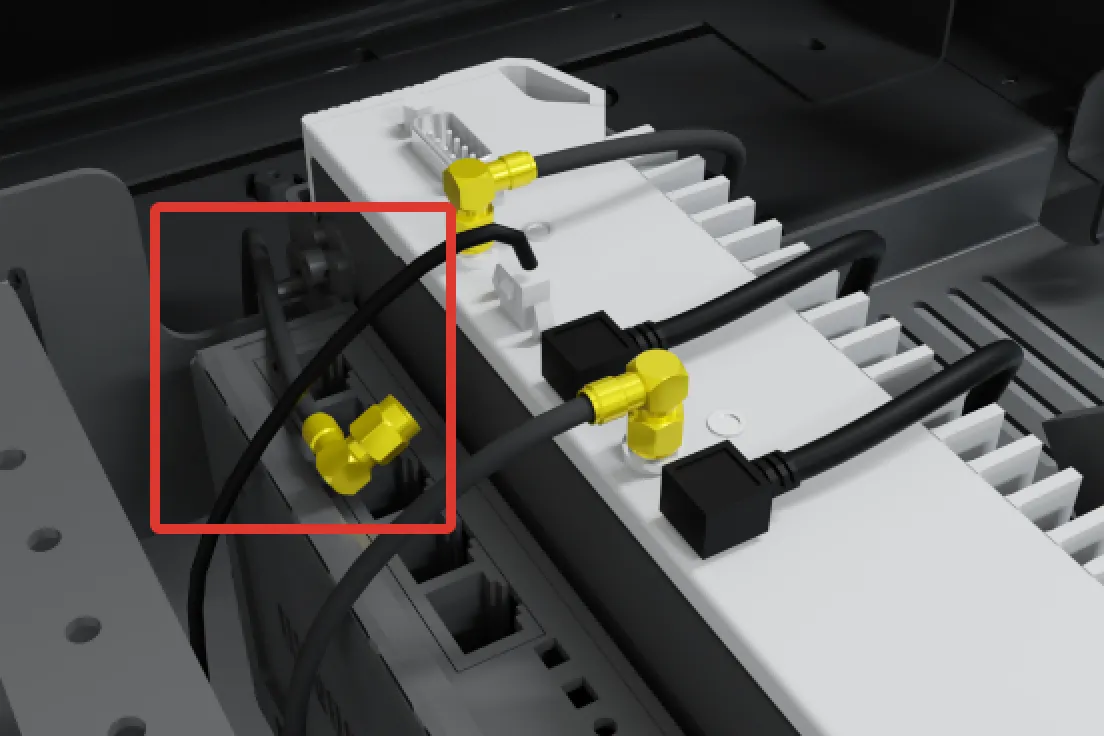
Disconnect one of the connected antenna cables from the robot computer and connect the other antenna cable in its place. Use an 8 mm wrench to loosen and tighten the connectors.
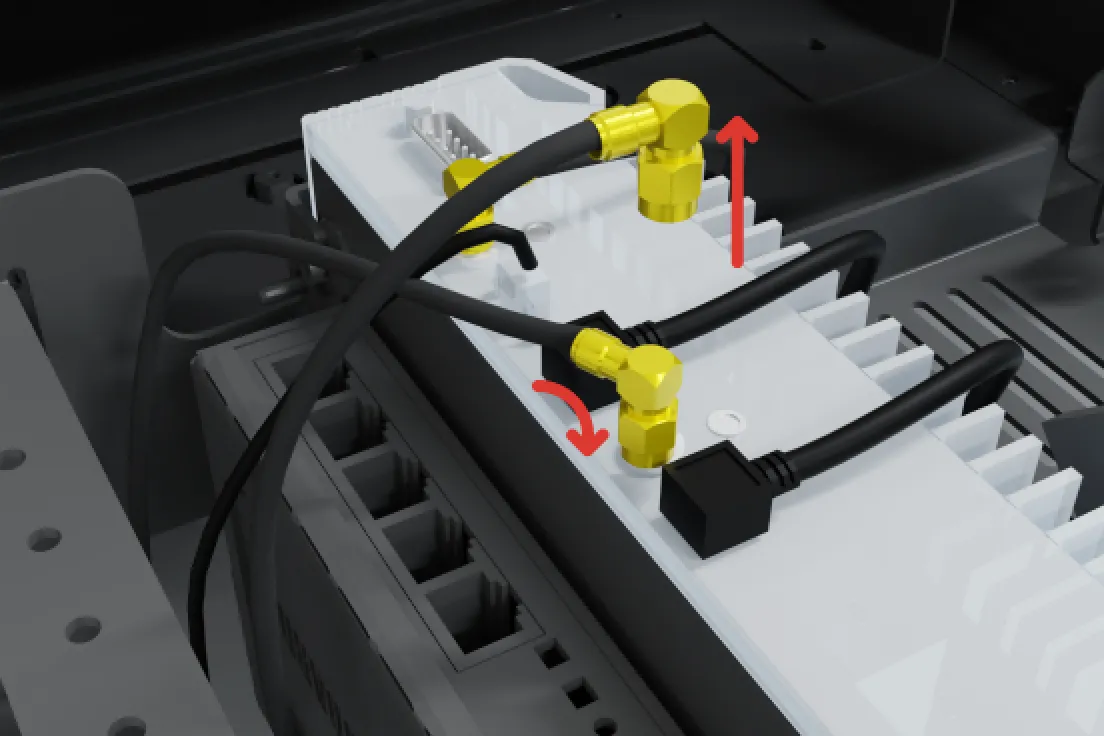
Close the electronics drawer.
Connector list
| Connector name | Connector type | Phoenix Contact |
|---|---|---|
| Power | M23 6p | CA-06P1N8A8008S |
| GPIO | M17 17p | ST-17S1N8A8K03S |
| Ethernet | M12 4p | SACC-MSD-4PCT-SH PN SCO |
| Auxiliary emergency stop | M17 8p | ST-08P1N8A8K03S |
| Auxiliary safety functions | M17 17p | ST-17P1N8A8K03S |
| Wi‑Fi antenna | RP-SMA | N/A |