
Connect to the web-interface
When the robot is turned on, you can connect a PC or tablet to the robot's internal network to access the web-interface. In the web-interface, you can configure the robot's settings and connect it to a wireless network.
Connect to network
You can connect to the robot using an Ethernet cable or an access point. If you are located in North America, the EU, or a part of the EAC, you can purchase a MiR Access Point from MiR. Outside these areas, you need to use your own access point that is approved for use in your region. If you choose to use an access point, you must ensure that the robot is disconnected from the wireless network before attaching the access point to remain compliant—see Connect the robot to a Wi-Fi network.
It is recommended that your device is configured to DHCP. If you require a static IP on your device, assign an address above 192.168.12.150, and set the DNS server and Gateway address to 192.168.12.1.

WARNING
Harmful electromagnetic interference might be the result of having two radio modules transmitting at the same time. The robot is tested for and is complying to the requirements for one radio module active at any given time.
- If you additional radio modules or use a different antenna than the one delivered with the robot, retest the robot to ensure compliance.
Access web-interface
To connect to the robot web-interface, follow these steps:
- Locate the RJ45 Ethernet port.The Ethernet port is in the rear compartment.
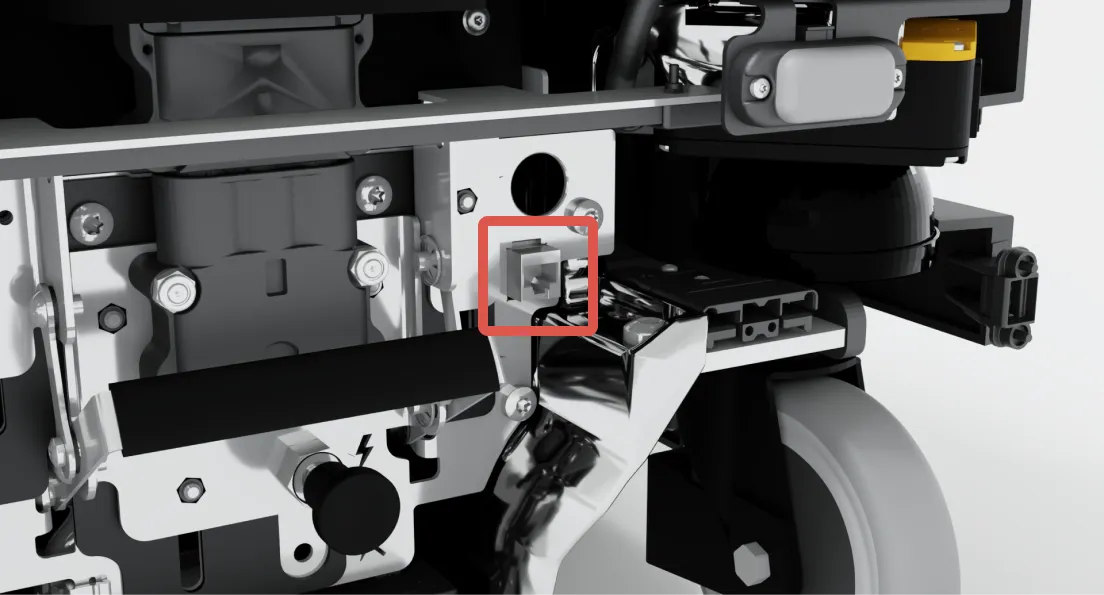
- Connect your device directly to the robot using an Ethernet cable, or connect an access point to the Ethernet port for a wireless connection.
- If you are using an access point, connect your device to the access point. The MiR Access Point Wi-Fi has the following format: MiR_3042XXXXX. Use the password shipped with the access point to connect.
- In a browser, go to the address 192.168.12.20 and sign in.